

ecommerce conversion
customer experience strategy
digital customer experiences
Yes, you can. For any serious ecommerce brand, the real question isn't if you can post to Instagram from your computer, but why you aren't doing it already. Moving your content workflow off a tiny mobile screen and onto a desktop is a game-changer for driving revenue. It unlocks significant efficiency gains, improves content quality, and allows for strategic alignment with your core business objectives, like product launches and sales events.
Shifting your Instagram management from a phone to a desktop is more than a convenience—it's a professional-grade strategy for scaling your brand. This desktop-first approach allows you to sync your social media calendar with critical business goals, like aligning a product drop with a high-stakes marketing campaign. It transforms your process from reactive to strategic, directly impacting your ROI.
Managing a professional social media presence involves far more than snapping a photo and hitting "share." A desktop workflow streamlines the entire creative process, giving you the space to be more thoughtful and organized. This operational efficiency protects your team's time, allowing them to focus on revenue-generating activities instead of tedious manual tasks.
Consider the business impact:
This decision tree breaks down a simple way to choose the right desktop posting method based on your needs.
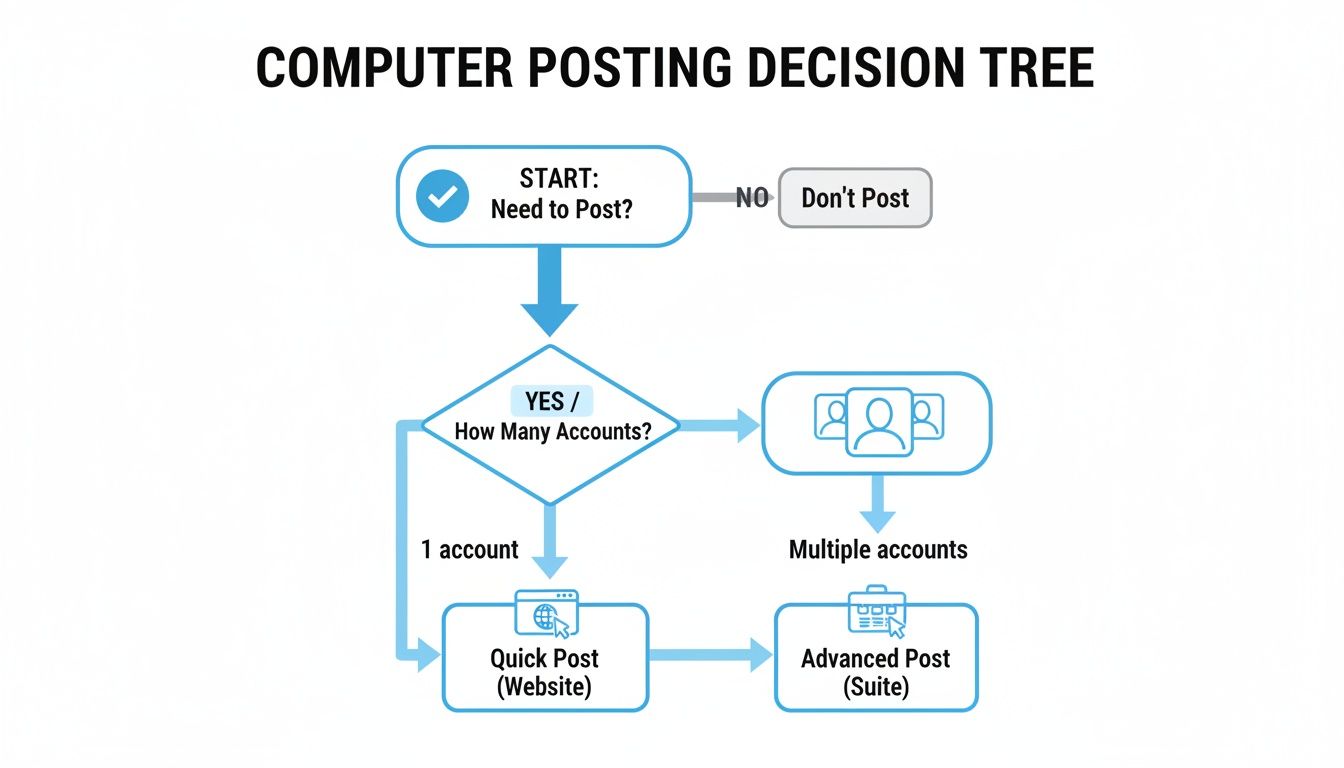
The flowchart makes it clear: for a quick, one-off post, the website works fine. But if you're managing multiple accounts or scheduling content in advance, a more powerful tool is required to protect your time and scale your efforts.
Desktop access has grown in popularity, especially among Shopify store owners and digital agencies juggling multiple client accounts. It might surprise you, but Instagram's desktop site is the fourth most visited website globally, pulling in massive traffic from users who prefer a larger screen.
With 2 billion Instagram users worldwide and 35 million in the UK alone as of July 2024, a significant portion of that audience interacts with the platform via desktop. You can learn more about how businesses are using Instagram for growth in our detailed guide.
For ecommerce brands, posting from a computer isn't just about saving time. It's about maintaining brand consistency, improving content quality, and ultimately driving more revenue through a more professional and streamlined workflow.
Sometimes you need to get a post live right now without firing up extra software or digging through a content calendar. For those moments, Instagram's own website is the most direct path from your desktop to your feed.
This is a go-to for quick, tactical updates. If you're a solo entrepreneur or part of a small team that needs to post on the fly, this method is effective. It’s a straightforward, no-frills way to publish single images or videos.
The process itself is refreshingly simple. Once you're logged into Instagram.com on your desktop browser, look for the plus icon (+) in the navigation menu on the left side of your screen. That's your "Create" button. Clicking it opens up the uploader, letting you drag and drop media straight from your computer.
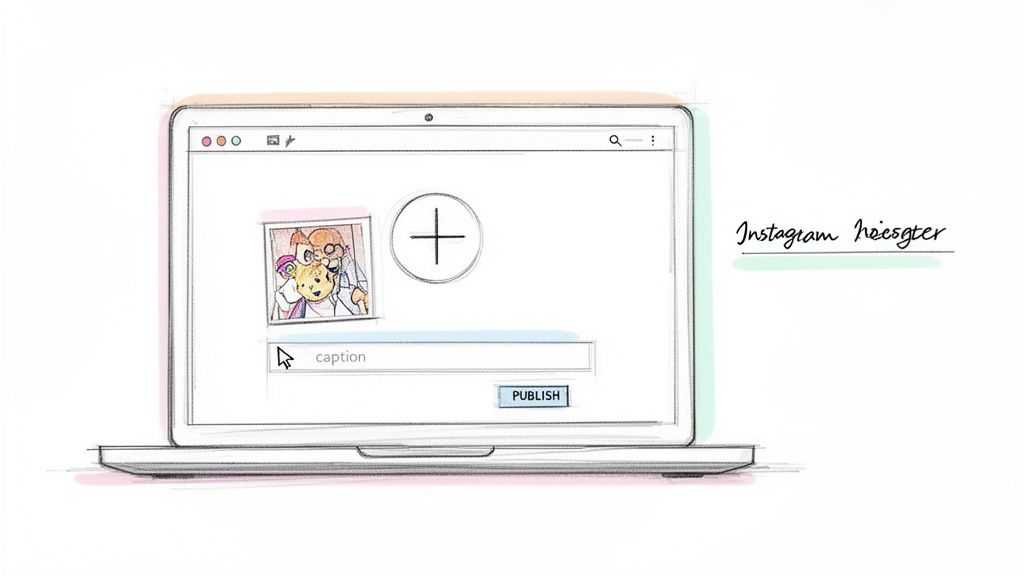
From there, you can handle all the basics: crop your image, apply filters, and make a few minor adjustments. The real win here, though, is getting to use your full keyboard, which makes writing and editing captions much easier.
Even with a simple method, a few professional habits can significantly impact your post performance. Here are a couple of actionable takeaways social media managers use when posting from the Instagram website.
First, write and prep your captions in a separate document like Google Docs or a notes app. This gives you space to edit meticulously, run a spell check, and get feedback from a teammate without the pressure of the live uploader. Once your messaging and hashtags are perfect, simply copy and paste the finished text into Instagram.
Second, always start with your highest-resolution image. Instagram will compress your file regardless, but providing a crisp, high-quality source file minimizes the compression artifacts that can make a brand look unprofessional. A better file in means a much cleaner post out.
Key Takeaway: The Instagram website is fantastic for quick, individual feed posts, but that's where its utility ends. It's intentionally limited. You can't use it to post or schedule Instagram Stories or Reels. For those formats, or for any serious content planning, you'll need a more robust tool.
This method is about speed and simplicity, not long-term strategy. It’s the perfect tool for reacting to a market trend or sharing a spontaneous update. But when your goal is to build a comprehensive content calendar that aligns with a major sale or marketing campaign, you’ll want to look beyond the website.
When you're ready to graduate from one-off, manual posts, Meta Business Suite is your new command center. Think of it as the native, free tool built for businesses that need to manage both Instagram and Facebook from a single dashboard. This isn't just about saving a few clicks; it's about building a serious, scalable content pipeline that actually drives your business forward.
For ecommerce brands, especially those on Shopify, this is where social media management becomes powerful. You can perfectly time your content with product drops, flash sales, or seasonal promotions, ensuring every post lands at the moment of maximum ROI impact. This strategic approach is what separates merely posting content from executing a true social media strategy.
The heart of Meta Business Suite is its Content Planner. This is a visual calendar that lets you see everything you have scheduled for Instagram and Facebook in one place. You can sit down and batch-create a whole week—or even a month—of content in a single session. For any busy marketing team, that's a significant efficiency gain.
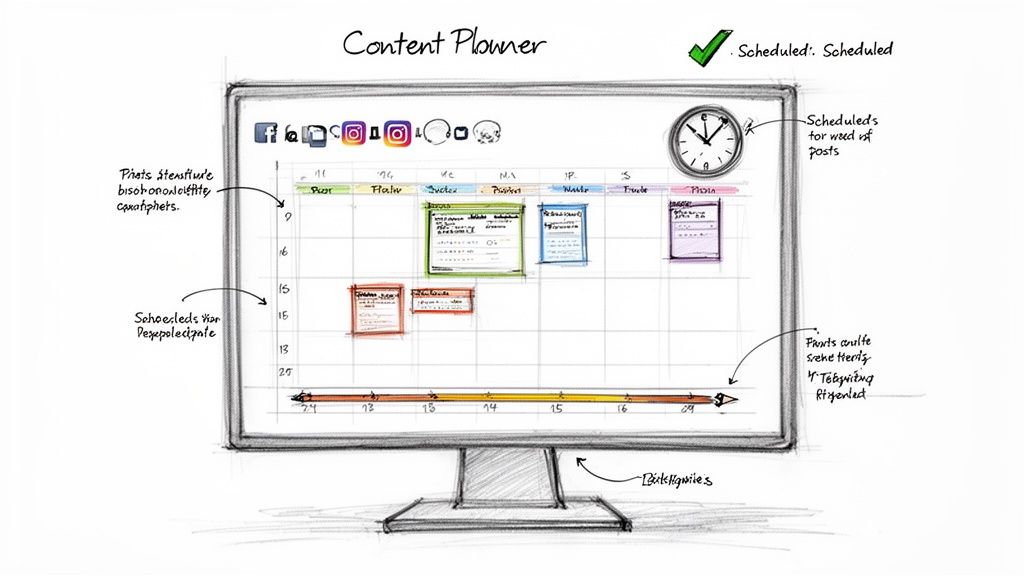
This centralized hub also provides access to powerful audience insights. The platform will suggest the best times to post based on when your specific followers are most active online. This data-driven approach moves you beyond guesswork and toward more predictable engagement. As your strategy grows, you'll find it incredibly helpful to learn how to manage multiple social media accounts effectively to keep everything streamlined.
Unlike the basic Instagram website, Meta Business Suite gives you full scheduling power over almost every content format. This is critical for brands striving for a consistent, engaging presence.
Having the ability to prep all these content types from your computer is how you build a cohesive brand story. You can see how this strategy fits into the bigger picture by integrating it with an ecommerce marketing automation platform, which connects your social efforts directly to your sales funnel.
For marketing managers and agencies, the ability to draft, schedule, and get approval on posts within one system is invaluable. It smooths out the entire workflow and professionalizes the content creation process.
Using the suite also lets you tap into global best practices backed by massive amounts of data. One analysis of 9.6 million posts found that key engagement windows are Thursday at 9 a.m. and Wednesday at 12 p.m. and 6 p.m. These are perfect slots for desktop users who can schedule posts while keeping an eye on other business dashboards. This access ensures you’re posting precisely when your audience is ready to engage, no matter their time zone.
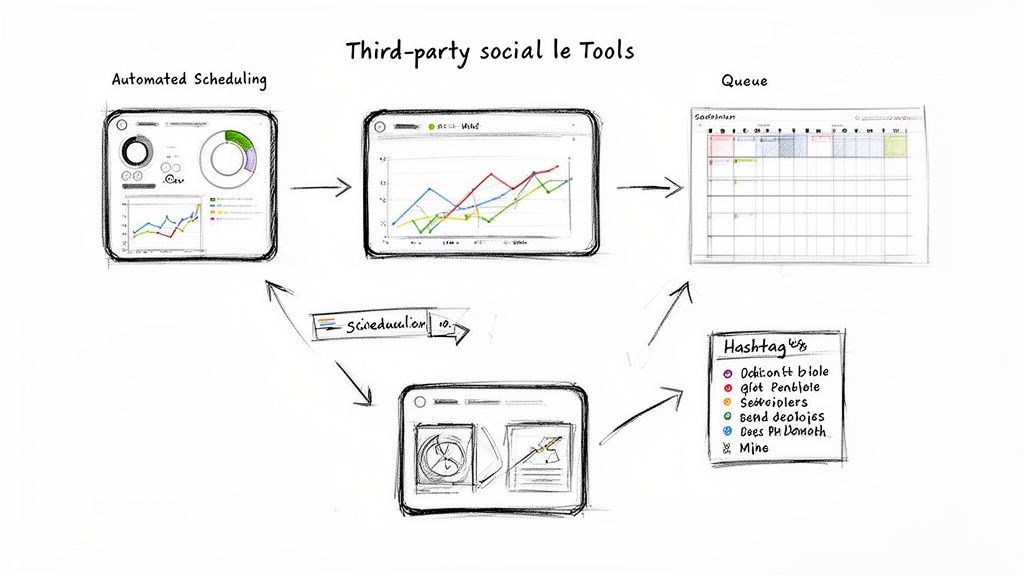
While Meta's own Business Suite gets the job done, a world of dedicated management tools exists for brands that need more firepower and control. Platforms like Buffer, Later, and Hootsuite were built for the power user who needs to go beyond basic scheduling. We're talking sophisticated automation that is essential for scaling social media and seeing a real return on your effort.
For a busy ecommerce brand, the difference is night and day. Imagine creating an entire content library of your product shots and scheduling them out for a full quarter. That level of planning frees up your team to think about big-picture strategy and creative campaigns instead of getting lost in the daily grind of manual posting. These tools position social media as a core business function, not just something you do in a spare moment.
Unlike basic pop-up apps focused on email capture, these advanced platforms are designed for sophisticated automation that drives direct revenue. They move beyond simple countdown timers to integrate behavioral triggers and deep analytics.
The real draw of these third-party platforms is their specialized features, which are almost always more robust than what you’ll find in native apps. They're designed to solve the real workflow headaches that growing brands and agencies encounter.
You'll often find game-changing capabilities like:
These features tackle the inherent limitations of posting by hand or even through Meta Business Suite. They turn your ability to post to Instagram from your computer from a simple chore into a strategic, data-driven process. To really hit peak efficiency, you should look into the best social media management tools and find the one that fits your workflow.
By taking the tedious parts of content publishing off your plate, these tools let ecommerce brands maintain a consistent, high-quality Instagram presence without sinking countless hours into it. That consistency is exactly what builds brand loyalty and drives repeat business.
Picking the right tool comes down to your unique needs, team size, and budget. There's no single "best" platform for everyone.
Actionable Takeaway: Start by mapping out your main goals. Are you trying to perfect your visual grid, dive deep into analytics, or streamline your team's collaboration? Your answer will point you in the right direction. Next, think about integrations; a great tool should connect with your existing tech stack, like Shopify, Klaviyo, or your preferred SMS platform. Finally, look at the pricing. Most platforms offer different tiers, so you can start small and upgrade as your brand grows.
Knowing how to post to Instagram from your computer is just the starting line. Actually doing it effectively is what generates results. When you shift your workflow to a desktop, you're not just changing screens; you're opening up opportunities to polish your content, sharpen your messaging, and connect with your community. All of which directly impacts your bottom line.
A big screen and a real keyboard are surprisingly powerful tools. Use them to write compelling, error-free captions that tell a richer story about your brand. Organizing hashtag lists in a spreadsheet for different campaigns becomes a simple copy-and-paste action to boost discoverability.
Your desktop is where your high-resolution brand assets live. Use this advantage. Uploading from your phone often involves sending files back and forth, compressing them along the way, and slowly chipping away at their quality. Going direct from the source file on your computer ensures your images and videos look as crisp and professional as you intended.
Of course, you’ll want to pay close attention to the file specs to avoid any weird cropping or pixelation issues. A few seconds of prep can be the difference between a post that looks amateurish and one that screams quality.
Using a desktop workflow to post high-quality, perfectly edited content is a key differentiator. It signals to your audience that you are a professional brand that cares about details, which builds trust and can directly influence purchasing decisions.
For a quick reference, here are the specs you'll want to aim for to keep your content looking its best.
| Content Type | Recommended Resolution | Aspect Ratio | File Format |
|---|---|---|---|
| Square Image | 1080 x 1080 pixels | 1:1 | JPG, PNG |
| Portrait Image | 1080 x 1350 pixels | 4:5 | JPG, PNG |
| Landscape Image | 1080 x 566 pixels | 1.91:1 | JPG, PNG |
| Video Post | 1080p | 1:1, 4:5, 16:9, or 1.91:1 | MP4, MOV |
Following these guidelines helps guarantee your visuals show up exactly how you designed them, reinforcing that professional look.
The efficiency of a desktop doesn't stop once you hit "Publish." A larger screen makes managing your community much less of a headache. You can have multiple tabs open to monitor comments, reply to DMs, and keep an eye on what competitors are doing—a much more organized and effective way to work.
Meaningful interaction is everything for growth. Taking the time to write thoughtful replies from a real keyboard—instead of tapping out short responses with your thumbs—is how you build a truly loyal following. We dive deeper into this in our guide on how to easily boost social media engagement.
This enhanced engagement also ties into timing your posts just right. With over two billion global users, Instagram is now the fourth most visited website worldwide, and desktop access is a huge part of that. Research shows that evening hours, from 6 p.m. to 11 p.m., are prime time for engagement across all zones. It's the perfect window to launch campaigns right from your computer. You can dig into more data on the best times to post on Mavic.ai.
By bringing together high-quality visuals, polished copy, and strategic engagement—all made easier by your desktop—you can transform your Instagram presence from a simple content feed into a powerful channel that actually drives revenue for your business.
Even with a clear roadmap, you might still have a few lingering questions about shifting to a desktop-first Instagram workflow. Let's tackle the most common ones so you can move forward with confidence.
This is about understanding the official tools and best practices so you can make smart, secure decisions for your brand.
Yes, you absolutely can—but the tool you use makes all the difference.
For total creative control and the ability to schedule both Stories and Reels ahead of time, your best bet is Meta Business Suite. It was built for this, giving you the power to plan out your more dynamic content well in advance.
Many of the top-tier third-party tools like Buffer or Later also handle this well, often adding even more advanced features. Just know that if you’re using the simple uploader on Instagram.com, you’re limited to standard feed posts—single images, carousels, and videos.
Absolutely not. This is a stubborn myth that is completely false. As long as you stick to official, supported methods like the Instagram website or Meta Business Suite, the algorithm treats your posts exactly the same.
The algorithm cares about engagement signals—likes, comments, shares, and saves—not the device you uploaded from. In fact, posting from a desktop often leads to better performance because you can upload higher-quality images and spend more time crafting the perfect caption without fumbling on a tiny keyboard.
Key Insight: The algorithm rewards quality and relevance, not the device you used. Pour your energy into creating content your audience loves, and the platform will take notice.
If you're juggling more than one account, the native Instagram website just won't cut it. It’s time to graduate to either Meta Business Suite or a dedicated third-party scheduling tool.
Meta Business Suite makes it simple to hop between the different Instagram and Facebook pages you manage. But for agencies or brands managing a whole portfolio of clients, the professional third-party platforms are in a league of their own. They're built for this exact challenge, offering features like:
The risk is incredibly low, if you stick to reputable, official Meta Business Partners. Companies like Hootsuite, Sprout Social, Buffer, and Later all use Instagram's official API. Think of the API as a secure, pre-approved handshake between their software and your account.
The real danger comes from sketchy, unauthorized apps or browser extensions that ask for your Instagram password directly. That’s a massive red flag. These tools can compromise your account security, scrape your data, and get your account flagged—or worse, banned—for violating Instagram's terms of service.
As a rule of thumb: Never, ever give your password to an unverified app.
Ready to turn your optimized Instagram strategy into real revenue? Quikly leverages the principles of consumer psychology to create high-urgency marketing moments that convert followers into customers. Discover how Quikly can transform your campaigns today.